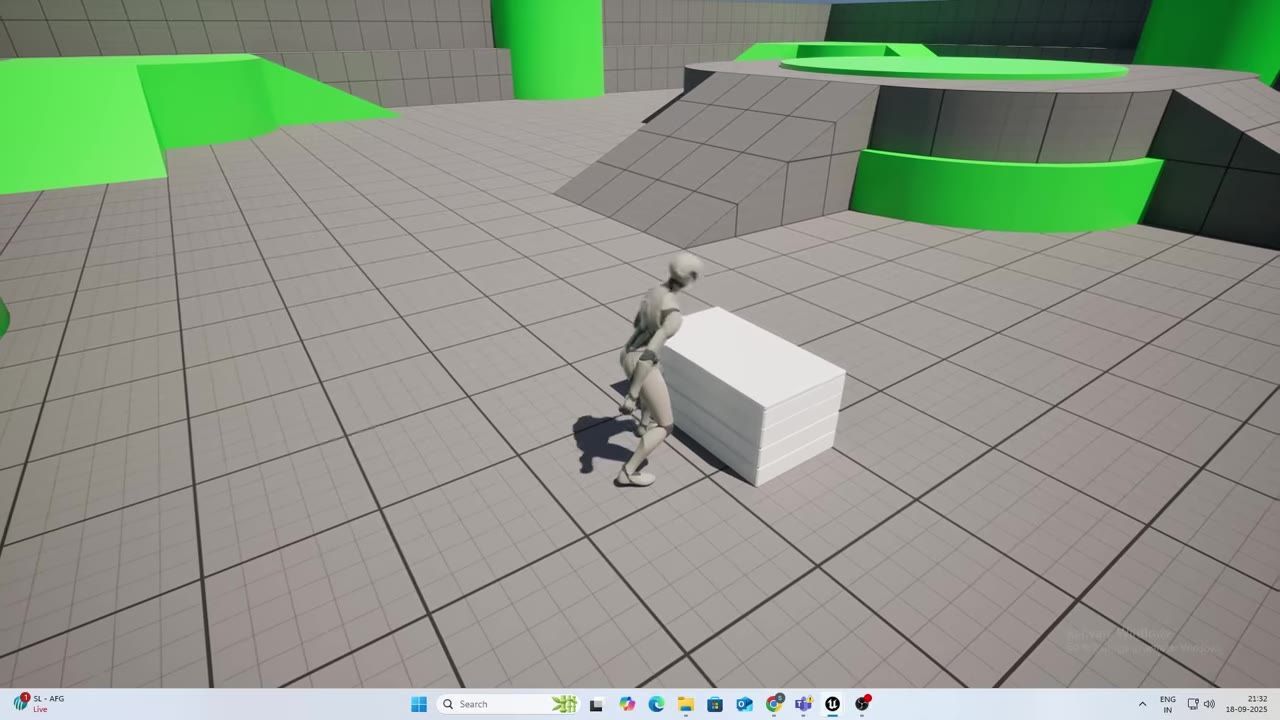
To set up an interaction system in Unreal Engine 5, enable the contextual animation and motion warping plugins, create a Blueprint for your target object with a trigger box, and wire up your character to detect and respond to the trigger. Use contextual anim scene and roles assets to synchronize the animation, and call the contextual animation scene from an input event when the character is in range.
What you need before you start
prerequisites
- Enable the contextual animation plugin and motion warping plugin from the Plugins window.
- Open the level where you will test the interaction system.
- Create an Actor Blueprint for your gameplay object (e.g., a loot chest).
- Add a skeletal mesh (for the object visuals) and add a trigger box (for interaction detection) to the object Blueprint.
- Open your third person character Blueprint and add a can interact with object boolean variable.
- Add a contextual anim scene actor component and a motion warping component to both the character and the object setup.

The Plugins window is open inside the Unreal Engine editor, with the plugin list visible. — All things GAME!
Build the gameplay object with a trigger
steps
- In your object Blueprint (e.g., BP_LootChest), ensure you have a skeletal mesh for the object and a trigger box component for detecting overlaps.
- Open the Event Graph in the object Blueprint and add events for OnActorBeginOverlap and OnActorEndOverlap.
- When an actor begins overlap with the trigger box, set the player's
can interact with objectvariable to true (you may need to cast to the character class). - When the actor leaves the trigger, set
can interact with objectto false. - The interaction logic is best kept on the character’s side; the object only marks itself as interactable.

The Blueprint editor shows BP_LootChest with only the default scene root in the Components panel. — All things GAME!
Set up the contextual animation assets
steps
- Add a contextual anim scene component to your object or to a suitable actor (name it for the relevant interaction, such as LootItem).
- Create a new contextual anim roles asset: In the Content Browser, right-click, choose Data Asset, then pick the contextual anim roles asset type. Name it clearly.
- Add two roles: one for the Player and one for the Object. Click Update Roles after adding.
- Create the animation montage in your animation folder based on your desired interaction animation (e.g., opening a chest).
- In the contextual anim scene asset, assign the Player as the primary role and mark it as a character.
- In the mesh-to-component and mesh-to-scene offset fields, adjust values as needed to align the animation preview (e.g., Z offset -90).

The Unreal Engine Content Browser is open to the ContextualAnims/Loot folder, with a Cas_LootItem contextual animation data asset visible. — All things GAME!
Add motion warping and preview the object together
steps
- In the montage for your interaction, add a motion warping notify at the very start.
- Set the warp target name to match your player role.
- In the contextual anim scene, add a walk point definition: set the Player mode to Custom and set the origin to Object.
- Add a definition for the Object with the target name set to object and use the primary actor.
- Override preview data so both the player and the object appear in the preview. Assign the loot chest class to the object’s preview role.
- Click reset scene after updating the preview and offsets to refresh the visualization.

The animation editor shows the preview scene with the character and object together while the motion warping settings are open. — All things GAME!
Wire the input to start the interaction
steps
- In your character Blueprint, bind a keyboard input event (such as the "E" key).
- On key press, branch on whether
can interact with objectis true. - Check that the stored object reference is valid.
- If both are true, create contextual anim bindings:
- Create a map with two entries: player and object.
- Use a self reference for the player binding.
- Use the object reference for the object binding.
- Call Start Contextual Anim on the contextual animator component, passing the binding map.
- Test in editor: walk into the trigger, press E, and see if the interaction animation plays.

The Blueprint EventGraph is open with multiple nodes wired together. — All things GAME!
Tighten the alignment and finish the pickup system
before after
Initial Alignment
- The character may stand slightly too far away, or not face the object correctly.
- The collision area for the interaction might be on the wrong side of the object.
- Test the interaction and notice if the animation looks out of sync.
Improved Alignment
- Adjust the mesh-to-scene or mesh offset for the player role in the contextual anim scene. Increase the Y or further tweak Z/Y as needed and hit reset scene after each change.
- Move the trigger box or object collision to the correct area so the character interacts from the right spot.
- After each adjustment, test in play mode. The character should rotate and align with the object and perform the animation sequence smoothly.
- If you want the object (like a chest) to animate too, add a play animation node on the object Blueprint when interaction occurs.

Unreal Engine shows a character preview scene with timeline controls and section settings open for adjusting an animation setup. — All things GAME!
Also worth knowing
- Reusable setup: This interaction system structure can be reused for different gameplay objects, such as doors, boxes, buttons, and levers.
- Height variation: For pickups on different elevations, adjust the mesh or interaction offsets in the contextual animation asset.
- Character alignment issues: If your character rotates the wrong way after an interaction, check and adjust the rotation and reset options on the interaction actor.
- Interaction not triggering: If the animation doesn't play, check your Blueprint chain and ensure the interaction variables and bindings are correctly set up.
FAQ
Unreal Engine 5 character interaction tutorial
To build a character interaction system, start by enabling the necessary plugins, create an actor with a trigger, and set up contextual animation assets, then tie the interaction logic to an input key in the character Blueprint.
how to interact with objects in UE5
Place a trigger box on your target object, detect when the character enters the trigger, set a variable to allow interaction, and handle the interaction logic and animation when the player presses the designated input key.
UE5 pickup and trigger system
Combine a trigger box with overlap events to mark when the character can perform an action. Use contextual animation to handle synchronized pickup sequences or other interactions when the input is pressed.
beginner interaction system Unreal Engine
A simple interaction system requires a trigger box, a boolean variable to check whether interaction is allowed, basic Blueprint logic, and use of contextual animation for a clean interaction sequence.
Unreal Engine 5 gameplay interaction guide
The outlined system lets you interact with objects, trigger pickups, and play synchronized animation using built-in UE5 components and Blueprints. You can extend this setup to other gameplay objects or use interfaces for even more flexibility.
Official reference: Unreal Engine documentation.
Sources
Screenshots on this page are frames from the videos below, used to illustrate the steps they describe. All rights remain with their creators.
- Make Your Character Interact Seamlessly with Objects in Unreal Engine 5 — All things GAME!, September 18, 2025
Checked against: