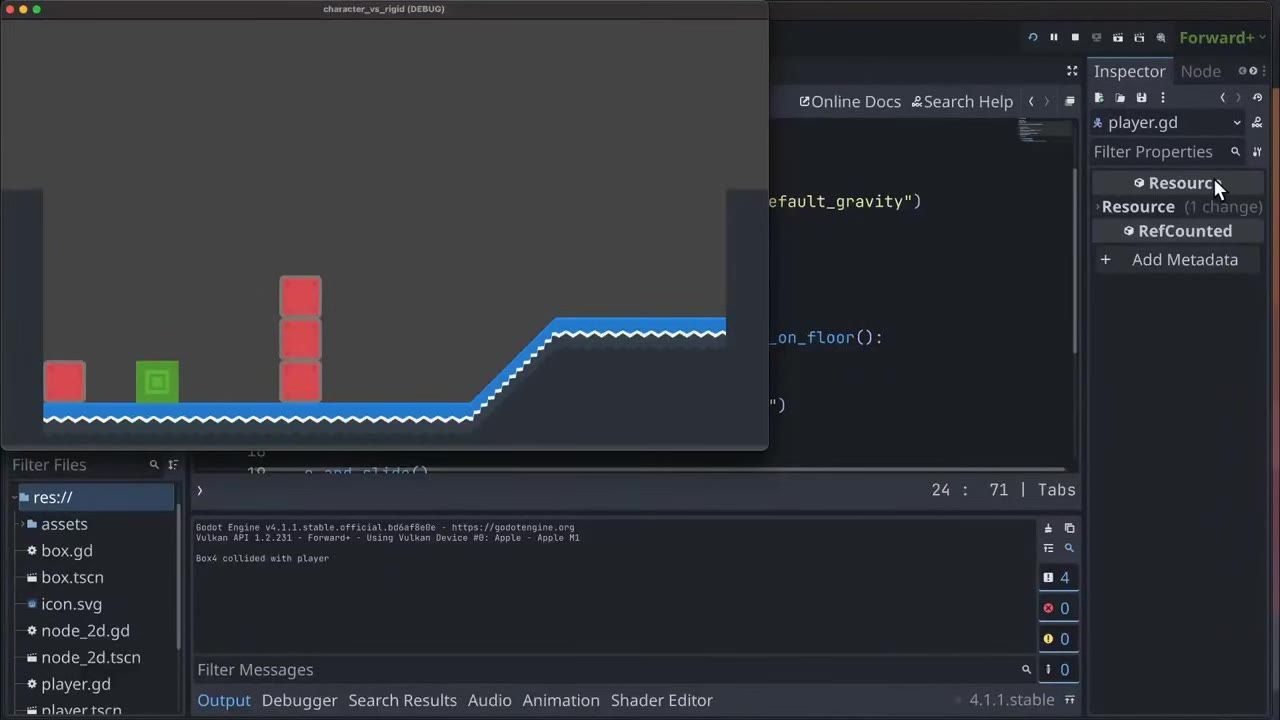
To let a CharacterBody2D push RigidBody2D objects without breaking your level, define collision layers so the player ignores pushable objects or, for a robust fix, detect rigid body collisions in your character script and apply a controlled impulse. The impulse method prevents physics bugs like boxes clipping through walls or floors.
Set up CharacterBody2D and RigidBody2D collision layers
To begin, create separate physics layers for the world, your player, and pushable items in Godot's project settings. Assign the player (the green block) to its own layer and the pushable box (the red square) to another. In your player's collision mask, make sure to remove the layer that the boxes use. This stops the player from detecting the rigid bodies while the rigid bodies still recognize the player, keeping their collision shapes separate.

Project Settings shows 2D Physics layer names for world, player, and items. — KidsCanCode

The Godot Inspector shows the selected Box node’s collision layer and mask controls. — KidsCanCode
prerequisites
- Godot installed and a 2D project created
- A scene with both a CharacterBody2D (player) and a RigidBody2D (box or pushable object)
- Separate physics layers assigned for the player, world, and items in Project Settings
Try direct pushing first, then watch the failure cases
When you remove the box layer from the player's mask, the player can now move through boxes and push them. However, this setup lets the player shove boxes through walls, and standing on a box can push it through the ground. These issues are common when the system relies only on collision mask adjustments and are acceptable for simple prototypes or puzzle games, but not for robust platformers or games that need stable physics.

A green player square and several red boxes are visible in the running level. — KidsCanCode
Apply an impulse to RigidBody2D from the player script
For a robust result, revert the mask change so both the player and the rigid bodies detect each other. Add code to the player’s script to detect collisions with RigidBody2D objects after movement, then apply an impulse to push them in the direction of movement.
Here's how you can set up the pushing logic:

The script editor shows player.gd while physics process logic adds an impulse to a RigidBody2D. — KidsCanCode
- Add a variable to control the push force.
- After moving the player, check collisions using
get_slide_collision(). - For each collision, if the other object is a rigid body, apply an impulse opposite to the collision normal.
Example code for 2D (player.gd):
extends CharacterBody2D

var push_force := 150.0  # Adjust as needed

func _physics_process(delta):
    # Basic left-right movement, customize as needed
    var input = Input.get_action_strength("ui_right") - Input.get_action_strength("ui_left")
    velocity.x = input * 200
    velocity.y += 1000 * delta  # Simple gravity

    # Move the player and get collision info
    var collision_count = move_and_slide()
    for i in collision_count:
        var collision = get_slide_collision(i)
        if collision and collision.get_collider() is RigidBody2D:
            var body = collision.get_collider()
            # Apply impulse into the rigid body
            body.apply_central_impulse(-collision.get_normal() * push_force)
Now, when you play the game, the player pushes boxes without letting them clip through walls or floors.

A running game view shows a green player block pushing near red boxes on a platform with solid walls and floor. — KidsCanCode
steps
- Revert the player’s collision mask so it detects the rigid body layer again.
- Open the player script in the Godot editor.
- Add a push force variable to control how much force to apply.
- In
_physics_process, after moving the player, check slide collisions. - For each collision, if the collider is a RigidBody2D, call
apply_central_impulse()with the collision normal and push force. - Run the game and observe stable pushing behavior—no boxes clipping through walls or floors.
Tune push force against character speed and body mass
The ideal push force depends on your player’s speed and on how heavy your rigid bodies are. Light objects will move with a small impulse, but heavier boxes need more force. You can also scale force by the player’s velocity for more nuanced control.
How much push force should I set?
- Choose a lower push force for light boxes and slow-moving characters.
- Use a higher push force if rigid bodies have many times more mass.
- Dynamic games may scale push force by the player's speed to keep movement responsive.
Use the same approach in 2D and 3D
The impulse-based pushing method works the same way in 3D—with RigidBody3D and CharacterBody3D—by adapting the script to 3D nodes and physics properties.
Godot physics basics for movement, jumping, and wall slide
Physics-based movement in Godot is handled through code using the character’s physics process function. You can extend the same controller to support jumping, gravity, and wall sliding, as long as your collision and rigid body handling is stable. Deciding whether to ignore rigid bodies with collision masks or to apply an impulse (as shown) is key to getting robust, predictable character behavior.

The Godot level view shows a green character body beside red rigid bodies on a 2D platform. — KidsCanCode
Also worth knowing
- Disabling moving-platform detection: If the player speeds up oddly after bumping a RigidBody2D, disable that rigid body's physics layer in the player's moving-platform settings to prevent it being treated as a platform.
FAQ
how to add collision in Godot
Add collision by attaching a CollisionShape2D node to your player, enemy, or platform nodes. Adjust the shape to match the graphics of each object, and assign objects to the correct collision layers and masks in the Inspector.
Godot character movement tutorial
Character movement is coded by controlling the velocity of a CharacterBody2D in the _physics_process function, adjusting velocity.x for left/right walking and velocity.y for gravity and jumping, with movement produced by calling move_and_slide().
Godot 2D physics basics
Godot’s 2D physics engine uses nodes like RigidBody2D, StaticBody2D, and CharacterBody2D. Move CharacterBody2D nodes with code, and let RigidBody2D nodes be controlled by the engine. Collision layers and masks determine which objects interact in the scene.
Godot jumping and gravity guide
To add jumping and gravity, increase the y component of your player’s velocity each physics frame to apply gravity, and set a negative velocity.y value when the jump input is pressed and your player is on the ground.
Godot tilemap collision setup
In TileMap, assign a CollisionShape2D to tiles that should be solid in the TileSet editor. When you paint those tiles in the scene, their collisions will block the player and interact with physics bodies.
Godot platformer movement script
A basic platformer script controls horizontal velocity with player input, applies gravity every frame, checks for ground contact, and allows jumping. Pushing rigid bodies safely requires impulse logic as described above to avoid pushing boxes through the level.
Official reference: Godot documentation.
Sources
Screenshots on this page are frames from the videos below, used to illustrate the steps they describe. All rights remain with their creators.
- Godot 4: Character to Rigid Body Interaction — KidsCanCode, August 3, 2023 (Creative Commons Attribution)
Checked against:
- Godot Engine - Blog – Godot Engine — Godot Engine