Use collision flags to check when the player is grounded, clear the Y velocity when grounded so gravity does not build up, and base jumping math on jumpHeight and timeToJumpApex for consistent results. Smooth X movement further by tuning separate acceleration settings for grounded and airborne movement.
Set up collision flags in the controller script

The controller script is open in MonoDevelop with the CollisionInfo struct area visible near the bottom. — Sebastian Lague
steps
- In your controller script, define a
CollisionInfostruct with booleans above, below, left, and right. - Add a Reset method in the struct to set all flags to
false. This prepares the collision state before each move. - Store one
CollisionInfoinstance on your controller, and call itsReset()method at the top of theMovemethod. - Update these flags within your horizontal and vertical collision checks: set left or right in horizontal checks depending on direction, and above or below in vertical checks.
Stop gravity from building up while grounded

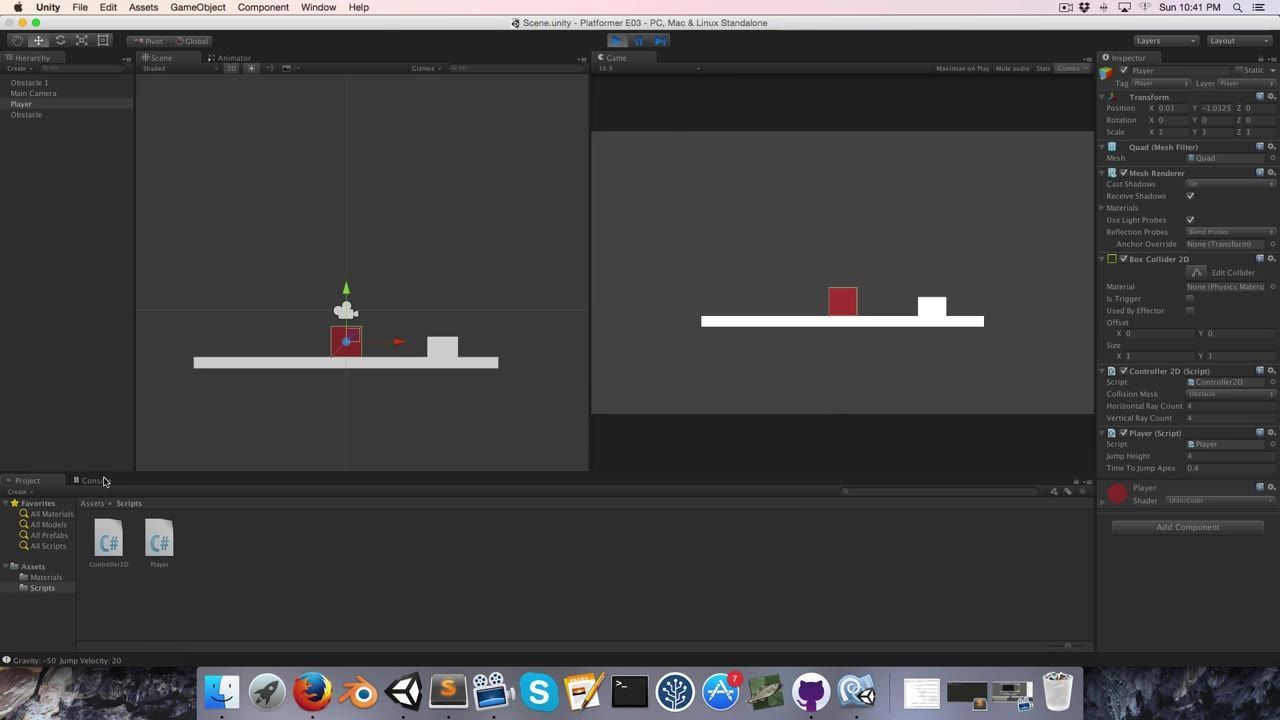
Unity shows a 2D platformer scene with the Controller2D script open in the Inspector and a simple level in the Scene view. — Sebastian Lague
Add jumping from the grounded state

MonoDevelop Unity displays the Player.cs script with grounded collision handling and a jump input branch in view. — Sebastian Lague
steps
- In the player script, use the jump input (typically space bar) and check that the below collision flag is true to confirm the player is grounded.
- When both are true, apply an upward velocity by assigning
velocity.y = jumpVelocity. - Store
jumpVelocityin a variable so it is easy to tweak and not buried in the movement code. - Test the jump in play mode to confirm that the character only jumps while on the ground.
Drive jump height with jumpHeight and timeToJumpApex

Unity editor shows the Player Inspector while the game is running, with jump height and time to jump apex fields visible. — Sebastian Lague
before after
Direct gravity and velocity values (less intuitive)
// Old approach—hard to tune
float gravity = -2f;
float jumpVelocity = 8f;Inspector-friendly jump tuning (recommended)
// Public fields, easier to adjust
public float jumpHeight = 4f;
public float timeToJumpApex = 0.4f;

void Start()
{
    gravity = -(2 * jumpHeight) / Mathf.Pow(timeToJumpApex, 2);
    jumpVelocity = Mathf.Abs(gravity) * timeToJumpApex;
}
With this approach, you can adjust jumpHeight and timeToJumpApex directly in the Inspector for quick iteration. This setup makes jump behavior more predictable and easier to tweak.
Smooth platformer movement with grounded and airborne acceleration

MonoDevelop-Unity displays a player movement script with grounded collision checks and acceleration logic visible. — Sebastian Lague
steps
- Replace direct assignment of horizontal velocity with
Mathf.SmoothDamp, using a float variable to store the smoothing velocity reference. - Define two new float fields: accelerationTimeGrounded (for when the player is standing on a surface) and accelerationTimeAirborne (for in-air control).
- When the player is grounded (
collisions.below), use accelerationTimeGrounded; otherwise, use accelerationTimeAirborne as the smoothing time. - In play mode, you should now see smoother left and right movement, with tighter response on the ground and looser, more floaty movement in the air for natural-feeling platform controls.
Also worth knowing
- Physics sync options: If the player seems to sink into or bounce off surfaces, enable Auto Sync Transforms in the Physics and Physics 2D Project Settings for greater stability.
- Verlet integration for stable jumps: Euler-style physics integration can introduce minor jump errors. For especially repeatable jump apex heights, try a Verlet-based calculation for improved physical accuracy.
- Collision ray length tip: When building collision rays, apply
skinWidthafter taking the absolute value of velocity. AddingskinWidthto a negative value can cause subtle bouncing issues against surfaces.
FAQ
how to add collision in Unity
Set up a struct with flags for above, below, left, and right collisions; reset these at each move; update them in your collision checks; and zero out the Y velocity whenever the player is grounded to prevent unwanted movement through surfaces.
Unity Rigidbody2D tutorial
Control movement using a Rigidbody2D-style pattern: check grounded state, assign jump velocity on jump input, and apply velocity smoothing for stable, responsive character movement.
Unity 2D physics basics
Handle gravity, collision flag management, and velocity tweaking separately, using collision info to decide when to apply or zero velocity changes.
Unity jumping and gravity guide
Let jumpHeight and timeToJumpApex decide the math for gravity and jump velocity rather than using hard-coded numbers, making jump tuning predictable and intuitive.
Unity platformer movement tutorial
Get smooth, responsive movement by using different acceleration smoothing values for grounded and airborne movement, making controls both tight and natural for players.
Unity collision detection script
Store per-side collision states (above, below, left, right) in a dedicated struct, reset them every frame, and update them in the controller’s collision handlers for reliable detection.
Official reference: Unity manual.
Sources
Screenshots on this page are frames from the videos below, used to illustrate the steps they describe. All rights remain with their creators.
- [Unity] Creating a 2D Platformer (E03. jump physics) — Sebastian Lague, April 6, 2015
Checked against:
- Download Archive — Unity