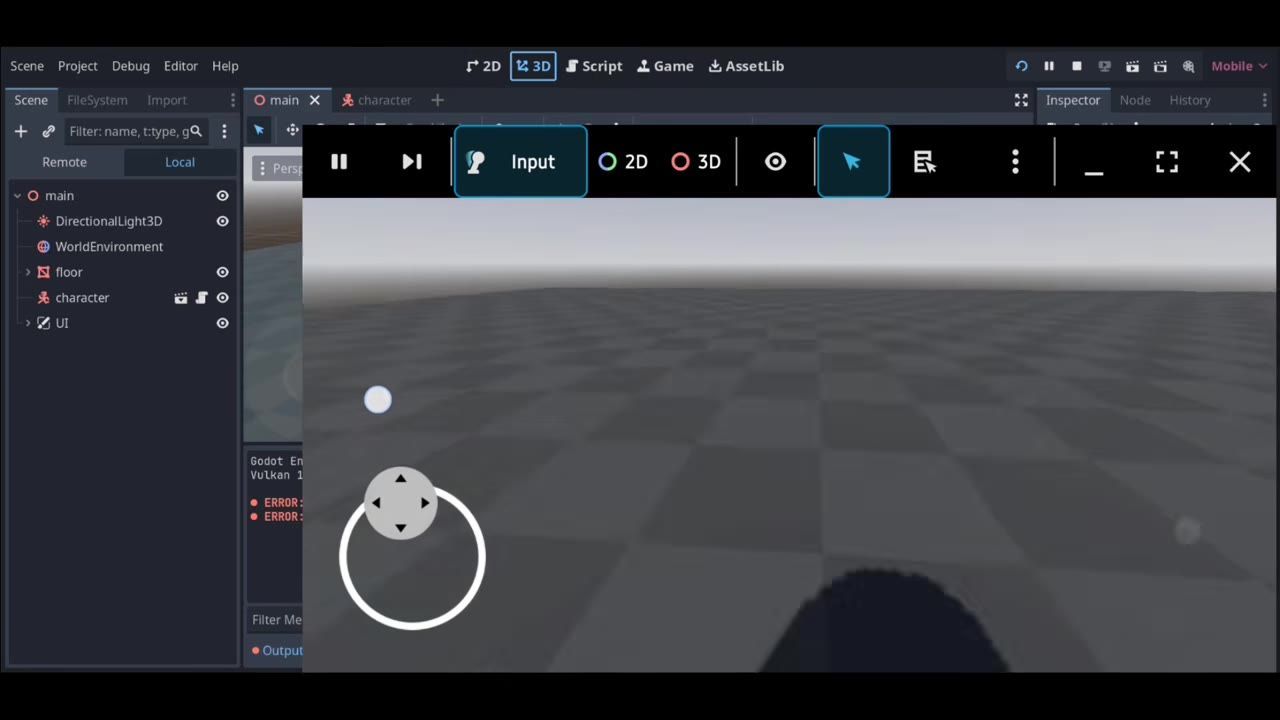
Set up your input actions in Godot 4, wire them to a player script controlling a CharacterBody3D, and use a camera pivot for proper mouse look. If movement or looking around fails, check your input actions and ensure you are rotating the correct nodes for body and view.
What you need before you start
Before building a first-person controller in Godot 4, make sure you have the following:
- A player scene that has a movement-ready body node in the scene tree.
- Input actions set up ahead of time for movement and camera look.
- Separate camera and character nodes, so you can rotate the camera independently from the player body.

Godot editor shows a loaded project with a 3D workspace, file list, and inspector panels open. — UnderGamer
prerequisites
- Godot 4 project with a 3D scene open and ready to edit.
- A player scene containing a movement body node (such as CharacterBody3D).
- Ability to edit the Input Map in Project Settings.
Set up the input actions
To support movement and mouse look, set up your required input actions.
steps
- Open Project Settings and find the Input Map section.
- Add new actions for movement, such as "move_forward", "move_back", "move_left", "move_right", and "jump" (names must exactly match those used in your script).
- Bind keyboard keys and mouse buttons to each action; for example, bind "W" to "move_forward", "A" to "move_left", etc.
- Review input action names to confirm they match your script exactly, preventing mismatches that would break controller input.
Build the character movement body
Construct the main scene structure for your first-person player.

Godot editor displays the character node in the scene tree with its child nodes and the Inspector panel open. — UnderGamer
steps
- Add a movement body node (such as CharacterBody3D) to your scene.
- Attach a collision shape to the movement body for physical interactions.
- Add a camera as a child of a pivot node (often called "CameraPivot" or similar) under the character, allowing separate vertical/horizontal rotation.
- Keep the node tree organized: character > camera pivot > camera.
Write the movement script
Connect input actions to your player node for proper horizontal movement.
extends CharacterBody3D

# Speed for player movement
var speed = 5.0
var mouse_sensitivity = 0.002

# Reference to the camera pivot node for vertical (pitch) rotation
onready var camera_pivot = $CameraPivot

# Track vertical rotation in radians
var camera_pitch = 0.0

func _physics_process(delta):
    var input_dir = Vector3.ZERO

    # Read horizontal movement input
    if Input.is_action_pressed("move_forward"):
        input_dir -= transform.basis.z
    if Input.is_action_pressed("move_back"):
        input_dir += transform.basis.z
    if Input.is_action_pressed("move_left"):
        input_dir -= transform.basis.x
    if Input.is_action_pressed("move_right"):
        input_dir += transform.basis.x

    input_dir.y = 0
    input_dir = input_dir.normalized()

    # Apply movement using Godot character movement
    velocity.x = input_dir.x * speed
    velocity.z = input_dir.z * speed

    # Apply gravity if not on floor
    if not is_on_floor():
        velocity.y -= 9.8 * delta

    move_and_slide()
Add camera look with the mouse
Set up mouse look by rotating the player body for sideways turning and a camera pivot for looking up and down. Clamp the up/down angle to prevent flipping.

The Godot editor shows the scene tree and a blank viewport with the character node visible in the hierarchy. — UnderGamer
steps
- Capture the mouse in the game window to ensure mouse movement is read for camera control.
- In your player script, add mouse look logic to _input(event):
func _input(event):
    if event is InputEventMouseMotion:
        # Turn player body (yaw, horizontal) with mouse X
        rotation.y -= event.relative.x * mouse_sensitivity

        # Pitch (up/down) camera pivot with mouse Y, clamp pitch
        camera_pitch = clamp(camera_pitch - event.relative.y * mouse_sensitivity, deg_to_rad(-90), deg_to_rad(90))
camera_pivot.rotation.x = camera_pitch- Test play to confirm the body rotates left/right and the camera rotates up/down, with the vertical angle locked between looking straight up and straight down.
- If the camera view spins freely up and down or flips, check the camera_pitch clamping and confirm rotation.x is applied to the camera pivot node, not the camera itself.
Check physics and fix common setup problems
Also worth knowing
- Camera pitch clamping: If the up/down look spins all the way around, revisit the
clamp()in your code. The pitch value should stay between -90 and +90 degrees in radians, and the rotation should be applied to the camera's parent node (pivot), not the camera itself. - Movement not responding: If your player does not move, the most common causes are a missing input action, a typo in the action name, or forgetting to bind keys to them. Check your Input Map before changing physics settings.
- View rotating a full 360° vertically: Always clamp camera_pitch and never apply vertical rotation directly to the player body. The clamp and pivot ensure the player cannot look all the way around.
faq
Godot 4 first person controller tutorial
A Godot 4 first-person controller requires setting up input actions for movement and mouse look, wiring them to a player movement script, and rotating both the player body and the camera pivot node properly for the correct look and feel.
how to make a first person controller in Godot
Create a movement body node with a collision and a camera setup, configure input actions for movement and look, and script the node so keyboard movement moves the body and mouse movement rotates the appropriate parts for yaw and pitch.
Godot movement and mouse look tutorial
Handle movement by checking input actions for each direction and applying the result to the player's velocity, then use mouse motion events to rotate the body and camera pivot separately, clamping the camera pitch to avoid disorienting flips.
Godot 4 FPS controller setup
Set up your input actions, build a scene tree with a movement body and camera pivot structure, and attach scripts that process input for both movement and looking. Properly configure each part so the player controls feel smooth and responsive.
Godot character movement with input actions
Link input actions directly in your player script for walking and jumping, and move the character body using the engine's physics functions. Double-check the spelling and binding of each action if the character does not respond.
Official reference: Godot documentation.
Sources
Screenshots on this page are frames from the videos below, used to illustrate the steps they describe. All rights remain with their creators.
- Godot First Person Controller From Basic | How To Make Games On Android | Godot Android Editor — UnderGamer, September 9, 2025
Checked against:
- Godot Engine - Blog – Godot Engine — Godot Engine