Create an asset collection for your sprite atlas, set up a loading state to ensure the asset is ready, then spawn your sprite using a sprite sheet bundle and update its frame index each tick using a timer. This workflow keeps asset loading separate from your game logic and allows you to animate the sprite by changing its frame index in a simple update system.
Set up Bevy asset loading for a texture atlas
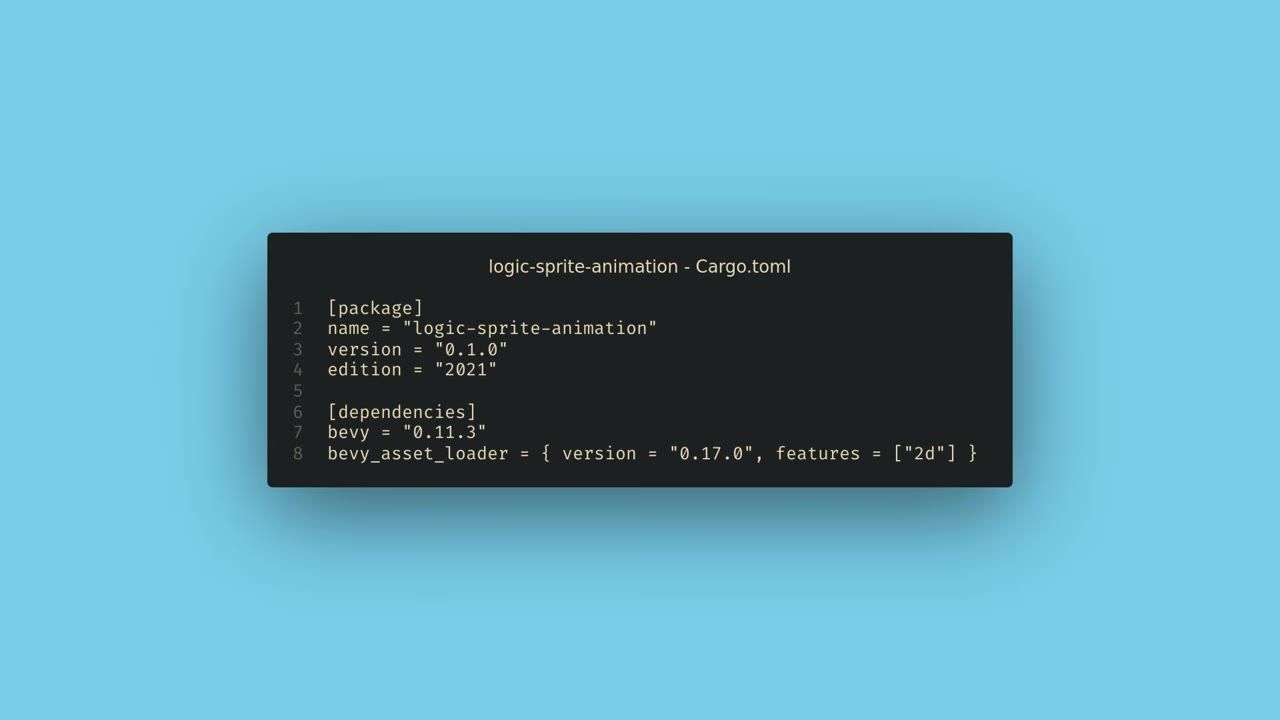
To get started, add the dependencies for Bevy and bevy_asset_loader with the 2D feature to your Cargo.toml. This gives you a straightforward way to manage asset loading and keep asset state separate from gameplay logic.

Cargo.toml is open in a code editor, showing the Bevy and bevy_asset_loader dependencies. — Logic Projects
Next, define an asset collection struct. Mark your atlas field so it will be loaded as a texture atlas. The asset collection will be inserted into a loading state and become available as a resource once loading completes. This is the cleanest way to handle asset management, allowing your systems to reference loaded content directly.
Prepare the sprite sheet and loading state
Use a loading state to guarantee your sprite atlas is available before the animated sprite is spawned. Register your asset collection struct for loading and advance the app state when everything is ready.

A code editor shows a PlayerWalk asset collection with a texture atlas asset and a walking handle. — Logic Projects
Define an enum for your game state so you can move from loading to the main state after assets finish loading.

A Rust code snippet defines a GameState enum with Loading and Main states. — Logic Projects
If you are working with pixel art, set the image plugin to nearest filtering for crisp edges. After loading completes, transition from the loading state into your main game logic where you will spawn and animate sprites.
Spawn the 2D sprite sheet bundle
After entering your main state, create a camera so sprites render correctly. Spawn the animated sprite using a sprite sheet bundle that includes your texture atlas handle. Set a custom size if you want to scale the sprite, or configure the camera as needed.
You will want to attach an animation timer and store the frame count as part of a dedicated component on the sprite entity.

A code editor displays Rust code for spawning a camera and a sprite sheet bundle. — Logic Projects
// Example: Spawning a sprite with animation in Bevy

fn spawn_player(
    mut commands: Commands,
    asset_collection: Res<PlayerWalk>,
) {
    // Spawn camera
    commands.spawn(Camera2dBundle::default());

    // Create sprite with the texture atlas
    commands.spawn((
        SpriteSheetBundle {
            texture_atlas: asset_collection.walking_atlas.clone(),
            sprite: TextureAtlasSprite::default(),
            transform: Transform::from_scale(Vec3::splat(2.0)),
            ..default()
        },
        // Attach an animation timer and frame count
        AnimationTimer {
            timer: /* Set up your timer here */,
            frames: /* Set the number of frames here */,
        },
    ));
}

// Define the animation struct
#[derive(Component)]
struct AnimationTimer {
    timer: Timer,
    frames: usize,
}
Animate frames in the update system
Animation happens by updating the sprite index every time the timer finishes. In your main state, run a system that queries for both the sprite and animation timer components, ticks the timer, and changes the sprite index accordingly. This pattern makes it easy to adapt to more complex animation control schemes.

A code editor displays an update system that advances sprite.index based on an animation timer. — Logic Projects
fn update_player_animation(
    time: Res<Time>,
    mut query: Query<(&mut TextureAtlasSprite, &mut AnimationTimer)>,
) {
    for (mut sprite, mut anim) in query.iter_mut() {
        anim.timer.tick(time.delta());
        if anim.timer.finished() {
            // Advance the sprite index to animate
            sprite.index = (sprite.index + 1) % anim.frames;
        }
    }
}
Sprite sheets, textures, and frame indexing
Your animation component holds the frame count and timer. Updating the sprite's index on each timer tick switches visible frames, resulting in smooth animation.

A small pixel-art character is visible in the center of the game window. — Logic Projects
A looping sprite animation in Bevy.
Also worth knowing
- Frame advancing tip: When moving to the next animation frame, increment the sprite index and use the modulo operator with the total frame count to loop smoothly, rather than branching with an if statement.
FAQ
Bevy sprite sheet animation tutorial
To animate a sprite sheet in Bevy, load your texture atlas using an asset collection and a loading state, then spawn the sprite and control the frame index with a timer in an update system.
how to load assets in Bevy
Assets such as texture atlases are loaded via an asset collection struct and a loading state that ensures all resources are ready before gameplay begins.
Bevy 2D animation tutorial
For 2D animation, create an animation component with a timer and frame count, and advance the sprite index each update after the timer completes, resulting in a simple frame-by-frame animation.
Bevy texture atlas setup
Set up a texture atlas by defining an asset collection with an atlas field, loading it in a dedicated loading state, and referencing the handle when spawning your animated sprite.
Bevy sprite sheet workflow
The workflow is to load your sprite assets with an asset loader and loading state, spawn your sprite with a sprite sheet bundle and animation data, and advance frames in an update system on a timer.
Sources
Screenshots on this page are frames from the videos below, used to illustrate the steps they describe. All rights remain with their creators.
- Sprite Sheet Animation and Asset Loading in Bevy — Logic Projects, October 7, 2023
Checked against:
- Bevy News — bevyengine.org