To pass messages between the client and server in Roblox Studio, create a RemoteEvent in ReplicatedStorage, use a LocalScript to fire it from a GUI button, and handle the event in a server Script with OnServerEvent to make visible changes for all players.
Set up the RemoteEvent, server Script, and GUI button
Start a new project and follow these steps to set up your RemoteEvent and scripting environment:
steps
- Go to ReplicatedStorage in the Explorer panel, open the Insert Object menu, and add a RemoteEvent.
- (Optional) Rename the RemoteEvent, noting its exact name for code use.
- In ServerScriptService, insert a Script. Name it as you like.
- Under StarterGui, add a ScreenGui, then insert a TextButton or ImageButton within it.
- Add a LocalScript as a child of the button you just made.

ReplicatedStorage is open with the Insert Object menu showing RemoteEvent as an option. — ByteBlox

The Explorer shows a RemoteEvent in ReplicatedStorage and a selected Script under ServerScriptService. — ByteBlox
Connect the button to the RemoteEvent from the client
The LocalScript under your button will detect button presses and fire the RemoteEvent to the server.
before after
Client-only color change (Not shared):
-- In the LocalScript
workspace:WaitForChild("Part").Color = Color3.fromRGB(0, 0, 255)
This only changes the color for the client running the script. Other players will not see the update.
Firing the RemoteEvent to the server (Shared):
-- In the LocalScript
script.Parent.Activated:Connect(function()
    game.ReplicatedStorage.RemoteEvent:FireServer()
end)
This sends a message to the server, triggering code on the server Script side. All clients can see changes made by the server.

StarterGui is expanded in Roblox Studio with a ScreenGui containing a selected TextButton. — ByteBlox
Handle the event on the server and change shared game state
Respond to the RemoteEvent in your server Script so every player sees the change.
steps
- In your Script under ServerScriptService, connect to the OnServerEvent of the RemoteEvent.
- The callback function receives the player who fired the event as its first argument.
- (Optional) Print
player.Nameto confirm which player triggered the event. - Change the color of the Part inside this callback so all players see the update.
Example server Script:
-- In the Script under ServerScriptService
game.ReplicatedStorage.RemoteEvent.OnServerEvent:Connect(function(player)
    print(player.Name)
    workspace.Part.Color = Color3.fromRGB(0, 0, 255) -- Set Part color to blue
end)
Understand client-side changes, server-side changes, and reverse messaging
RemoteEvents are a bridge between the player (client) and the authoritative game (server). Knowing who controls what helps prevent mistakes when building multiplayer systems.
:::comparison Client-side changes:
- Only the player running the LocalScript sees the update.
- Other players and the server do not see the client’s change.
- Useful for personal UI and effects.
Server-side changes:
- Changes made in a server Script are visible to all players.
- Use RemoteEvents to request these updates from the client.
Reverse messaging (server to client):
- RemoteEvents can travel from server to client with FireClient.

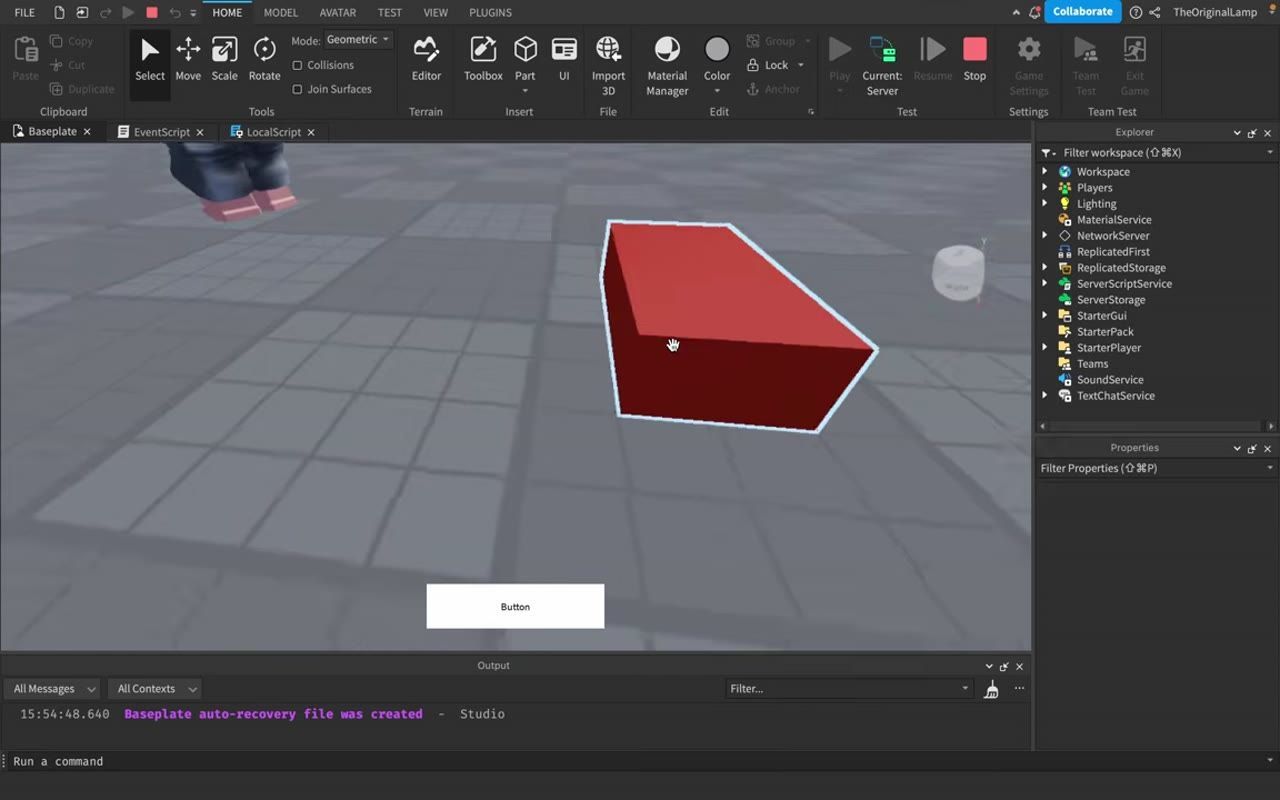
Roblox Studio shows a running game with a red block visible and a Button UI element on screen. — ByteBlox
Try the color-change challenge in your own place
Practice your understanding: set up the system so pressing the button makes the block turn blue, then after a delay turns it back to red for only the client who pressed it.
Try using wait(5) in the LocalScript to handle the timed part. Client-side color changes in the LocalScript will only affect the user who pressed the button. The server retains its version (blue).

Roblox Studio displays a running game scene with a red block and a button on the play area. — ByteBlox
Also worth knowing
- Beginner-friendly explanation: The step-by-step workflow helps anyone new to Roblox scripting understand both RemoteEvents and the client/server distinction.
- Button action template: You can adapt this exact setup to handle multiplayer actions such as shared lights, player kicks, or updating player stats.
- Practical challenge: Applying the final exercise in your own project is a good way to internalize how RemoteEvents drive visible multiplayer changes.
- Solving advanced messaging problems: This approach is the same technique needed for more complex messaging or data tasks across clients and the server.
- Bidirectional pattern: The same connection method works if you want the server to send an event back to a specific client as well as the other way around.
- Core multiplayer skill: This RemoteEvent workflow is fundamental to nearly all multiplayer and networking logic in Roblox Studio.
FAQ
how to use RemoteEvents in Roblox Studio
Insert a RemoteEvent into ReplicatedStorage, then use LocalScripts and server Scripts to send and receive messages when player actions occur. This allows the client and server to communicate and update the shared game state.
Roblox client server tutorial
Set up a RemoteEvent in ReplicatedStorage, fire it from a LocalScript in response to a player action such as a button press, and let a server Script receive and process the message using OnServerEvent.
Roblox networking basics
RemoteEvents are fundamental for networking in Roblox. They allow communication between the client, which is the individual player's view, and the server, which manages the shared world for all players, ensuring everyone sees the same game state for actions that affect multiple people.
RemoteEvents for beginners Roblox Studio
RemoteEvents make it possible for different scripts — running on players' computers (clients) and on the main game server — to trigger actions and send messages to each other. Creating one in ReplicatedStorage and wiring up button presses is an accessible first example.
Roblox multiplayer scripting tutorial
The client uses a LocalScript to detect and request changes, RemoteEvents transmit these requests, and the server Script processes them to update the game world for all players. This pattern is essential for reliable multiplayer interactions in Roblox Studio.
Official reference: Roblox Creator documentation.
Sources
Screenshots on this page are frames from the videos below, used to illustrate the steps they describe. All rights remain with their creators.
- How to Use RemoteEvents (for dummies) - Roblox Studio — ByteBlox, October 21, 2023
Checked against:
- https://create.roblox.com/docs/release-notes — create.roblox.com