To make a basic, multiplayer-safe save system in Roblox, open your published experience, enable API Services in Game Settings, and add save/load code in a server Script using DataStoreService. Use a stable key for each player, keep saves occasional, and do all reads/writes server-side for consistency.
Publish the experience and enable API access
Before you can save or load data in Roblox Studio, make sure your experience is published and API access is enabled for Studio. This lets DataStoreService calls actually work when testing.
prerequisites
- Open your experience in Roblox Studio.
- Publish your experience using the File menu before testing any saving features.
- Open Game Settings from the Home tab.
- Go to the Security section and enable Studio access to API Services.
- Save your settings before proceeding.

Roblox Studio shows Game Settings on the Security section with the Studio access to API Services option visible. — MonzterDEV
If your game is not published or API access is disabled, save code will not behave as expected in Studio.
Create a DataStore for player gold
Create the storage object on the server to keep each player’s saved value persistent across sessions.
steps
- Right-click ServerScriptService and insert a Script. Rename it to match the job, such as "GoldManager".
- Get the DataStoreService with:
local DataStoreService = game:GetService("DataStoreService") - Create a named DataStore with a fixed, recognizable name, for example:
local goldStore = DataStoreService:GetDataStore("PlayerGold") - Choose and stick with one store name. Changing the name later creates a new database and disconnects your game from previous saves.

Roblox Studio shows ServerScriptService selected in the Explorer with the GoldManager script open. — MonzterDEV
Save player data with a protected write
A successful save needs both a reliable player key and error handling so network issues don't break your game.
before after
With protected write
-- Variables for this example
local playerUserId = "123456789"    -- Replace with actual player.UserId in a real game
local playerGold = 250

-- Protected DataStore write
local setSuccess, errorMessage = pcall(function()
    goldStore:SetAsync(playerUserId, playerGold)
end)
if not setSuccess then
    warn(errorMessage)
end
Roblox Studio displays a Lua script with a pcall save block and SetAsync in the code editor. — MonzterDEV
Use pcall so if the network write fails, the script can keep running and print an error to the Output window. Do not trigger a save every time the value changes. Instead, save periodically or when the player leaves, to avoid hitting request limits.
Read player data back when the session starts
Loading data uses the same stable key and error protection. Reading from the store into a server variable makes it available to your game after restart.
steps
- Use
pcallto wrap the read logic:local getSuccess, currentGold = pcall(function() return goldStore:GetAsync(playerUserId) end) - If the read worked, print the loaded value to the Output panel:
if getSuccess then print(currentGold) end - Running the game should print the saved gold value to the Output window as confirmation.

Roblox Studio displays a Lua script in the editor with the Output panel visible at the bottom. — MonzterDEV
A printed value confirms that data was read back after a new play session or server restart.
Use leaderstats and shared player data on the server
Where to keep player progress
- Use the player’s unique identifier as the key if the value is account-specific.
- Keep the database name and key stable. This means the same player always pulls the same data record.
Roblox Studio UI and multiplayer basics
comparison
UI System Basics
Multiplayer Scripting

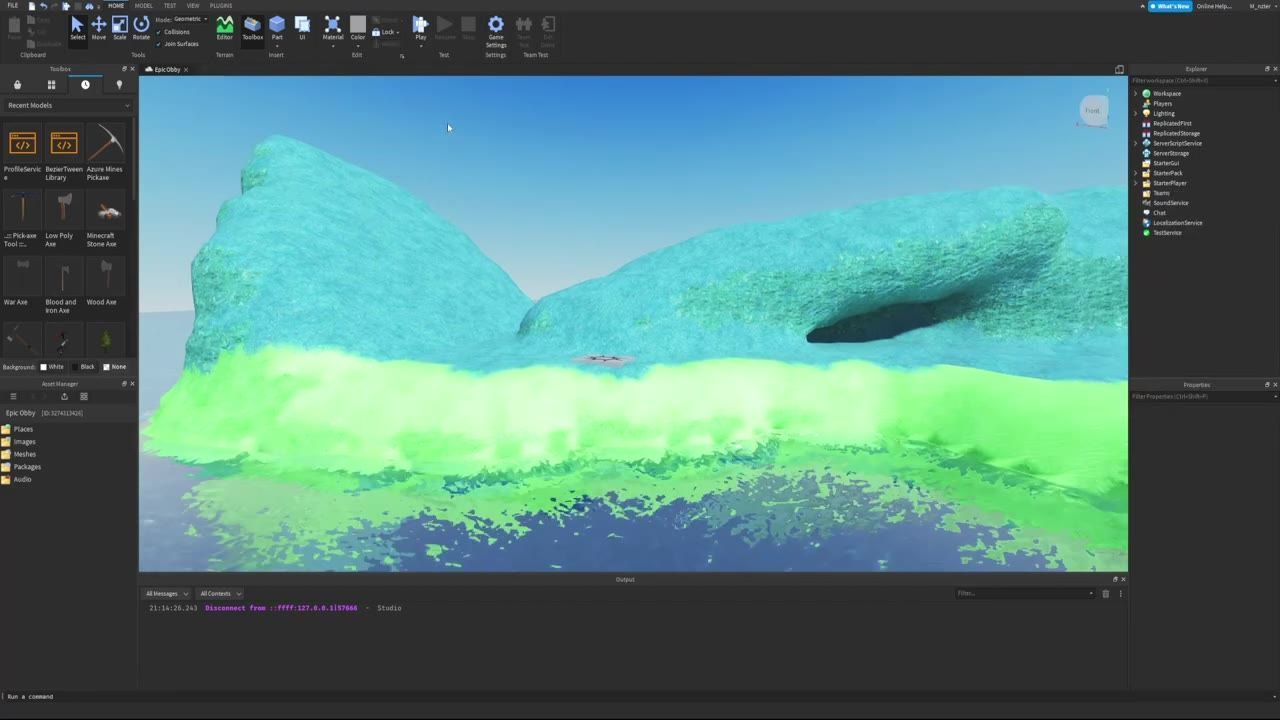
Roblox Studio shows a terrain scene in the main editor with the Explorer, Properties, Toolbox, and Output panels visible. — MonzterDEV
Roblox data store and save flow checks
Also worth knowing
- Consistent player save keys: Always use the same format and value (such as the player's UserId) for the key that stores player data. Changing the key name will create a new separate record and disconnect old saves.
FAQ
how to build UI in Roblox Studio
Build user interfaces by inserting a ScreenGui in the UI section of the Explorer. Add elements such as buttons, text labels, and frames using the editor's interface. Attach LocalScripts for UI interaction, then use RemoteEvents to pass state changes to the server when needed.
Roblox data store tutorial
Set up a DataStore by getting DataStoreService from the server and defining a clear store name. Save player data with SetAsync, using a consistent key per player, wrap in pcall for error handling, and read with GetAsync in the same way.
Roblox Studio save player data
Insert a Script in ServerScriptService, get a DataStore with a fixed name, use the player's UserId as a key, and wrap all SetAsync and GetAsync calls in pcall. Confirm saved data in play by reading back the value after a session reload and checking the Output window.
Roblox menu system guide
Menu systems are built with ScreenGui and Frames in the UI section. The UI can show player data such as gold or inventory but should connect to server-side values through RemoteEvents, not store or modify saved data directly.
Roblox multiplayer scripting basics
Keep all saved player values on the server so there is only one authoritative version. Use RemoteEvents to send requests from the client to the server (for example, when the player clicks a button to buy something). Only process game-changing logic on the server side for consistency in multiplayer games.
Roblox Studio inventory UI tutorial
Build inventory UI as ScreenGui elements and use LocalScripts for interactive controls. Any changes to the inventory or player data triggered by the UI should be sent to the server with RemoteEvents, where the server script updates values and, if needed, saves them to the DataStore.
Official reference: Roblox Creator documentation.
Sources
Screenshots on this page are frames from the videos below, used to illustrate the steps they describe. All rights remain with their creators.
- Intro to Saving Data! Learn Roblox Studio Episode 14 — MonzterDEV, April 4, 2022
Checked against:
- https://create.roblox.com/docs/release-notes — create.roblox.com