Use a save manager that serializes your current game state to a file, then reads that file back and restores the same state when the player loads. In this pattern, save points call into the manager, the load screen lists saved slots with a screenshot and location name, and loading restores the saved state before sending the player back to the saved location.
Set up a save manager for persistent data
A Godot save system works around a save manager: a node or singleton that knows when to save, how to serialize important game state, and where to write save files. In this pattern, every save point in the world (like a statue, computer, or, in the shown example, an owl) calls into this manager with its unique location when the player interacts with it. The save manager owns the current slot, determines what to save, and keeps saved data organized for you.

An owl save point displays a save prompt with Save and No thanks options. — Nathan Hoad
Serialize the current game state to a file
The heart of saving progress is serializing your game's current state and writing it out as a file. When a save is triggered:
- The save manager takes a screenshot of the game for later preview.
- It serializes relevant game states, such as player position, health, and the current location.
A helper method on your game state class (like to_serialized) decides exactly which properties to include in the save.

A code editor displays a save_game function that writes a save file, saves a screenshot, and serializes game state data. — Nathan Hoad
Example pseudocode:
# In your SaveManager script
func save_game(location_name):
    var screenshot = get_viewport().get_texture().get_data()
    var game_state = current_game_state.to_serialized()
    var save_data = {
        "location_name": location_name,
        "state": game_state,
        "screenshot": screenshot,
    }
    var file = FileAccess.open("user://savegame.json", FileAccess.WRITE)
    file.store_string(to_json(save_data))
    file.close()
This pattern keeps a clear line between what your game logic needs and what is actually saved, reducing the risk of missing important properties.
Build the load screen from saved slots
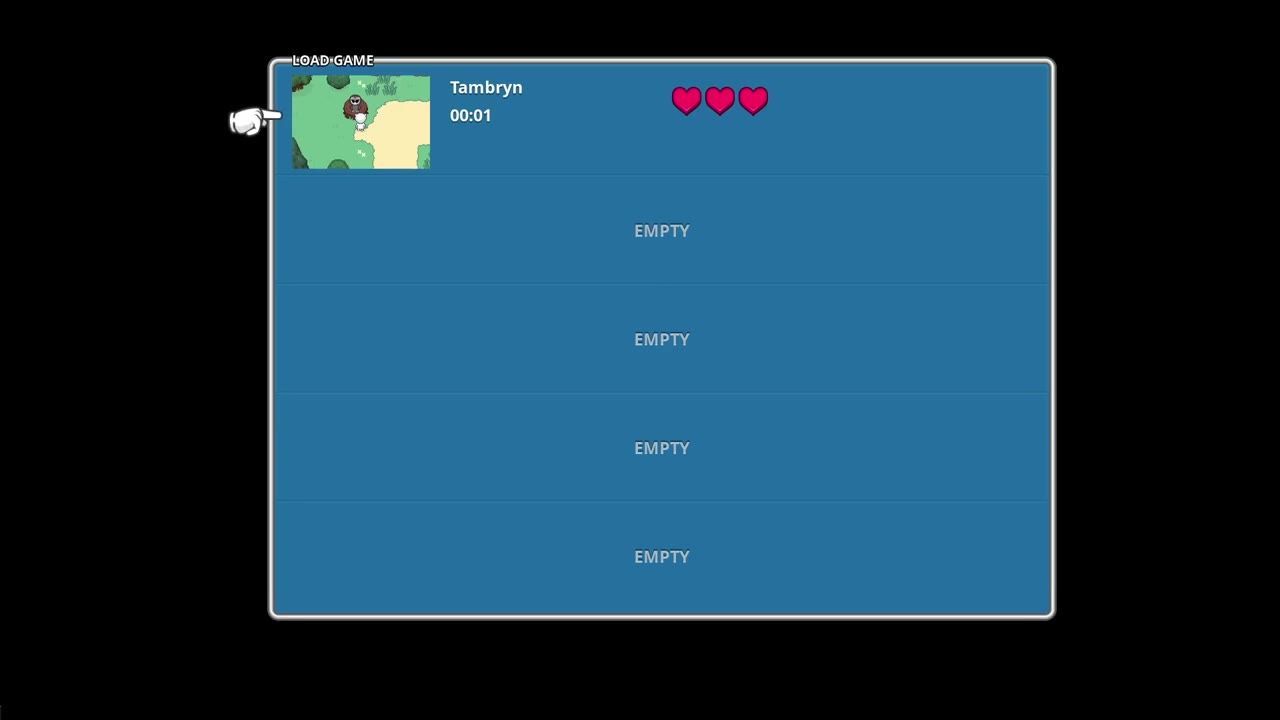
The game should show all available save slots with helpful information for each. Each slot typically presents:
- A preview screenshot from when it was saved.
- The name of the location where the save happened.
The player picks a slot, and the system loads that saved file for restoration.

The load game menu displays a saved slot with its preview image, save name, time, and heart icons above empty slots. — Nathan Hoad
Restore the saved game state
Loading reverses the save process:
- The save manager opens the selected save file.
- It deserializes the saved data, reconstructing the relevant game state.
- The manager restores this data so that all in-game systems reflect the saved information.
- The transition system takes the player to the correct location, just as with a standard scene transition.

The load game screen shows one saved slot selected at the top with empty slots below. — Nathan Hoad
Example pseudocode:
# In your SaveManager script
func load_game():
    var file = FileAccess.open("user://savegame.json", FileAccess.READ)
    var save_data = parse_json(file.get_as_text())
    file.close()

    var loaded_state = AbstractGameState.from_serialized(save_data["state"])
    current_game_state.copy_from(loaded_state)
    transitions.goto_location(save_data["location_name"])
The actual transition and restoration use your existing systems for scene and location changes; after the state is restored, play resumes from the point of the last save.
Use the same pattern for retry and game over
When the player fails—such as upon death or defeat—the same save-and-restore system smoothly enables "retry" or "load from last checkpoint" flows. The game over handler restores the game state from the point when the player entered the area, then transitions back to that entry location on retry.

A game over screen shows the Try again and Quit to title options beneath a spotlighted character. — Nathan Hoad
Also worth knowing
- World-based save points: Many players prefer save points that are integrated with the world, such as statues or themed interactables, instead of abstract menus.
- Save slot previews: Capturing a viewport screenshot at save time creates preview images that help players identify saves on the load screen.
- Unified save data: If your game spawns many resources at runtime, serializing them into a single save structure is simpler than saving separate files for each one.
FAQ
Godot 4 saving and loading tutorial
A basic save and load system in Godot 4 saves game state to a file (like position, health, and location), associates a screenshot and location name with each slot, and restores that state on load before sending the player to the correct place.
how to make a save system in Godot 4
Set up a manager that writes the current game state—including variables you choose to persist—into a file on disk. Each save point in your level can call into this manager to trigger a save.
Godot 4 load player progress
Loading opens the saved game file, deserializes the previously stored data, and restores it into your current game state objects before transitioning the player to their last-saved location.
persistent game data in Godot 4
Persistent data is best handled by centralizing what needs to be saved in a single structure, then saving and loading this structure as a whole each time.
beginner save file system Godot 4
A beginner-friendly system starts with a save manager node or singleton that records and retrieves essential variables, such as the player’s current status, inventory, and position, plus a screenshot and save name for easier slot selection.
Official reference: Godot documentation.
Sources
Screenshots on this page are frames from the videos below, used to illustrate the steps they describe. All rights remain with their creators.
- Saving & Loading tutorial for Godot 4 — Nathan Hoad, September 18, 2023
Checked against:
- Godot Engine - Blog – Godot Engine — Godot Engine