To create a modular interaction system in Godot 4, make an Area2D-based scene for interactable areas, connect their signals to a central interaction manager (autoloaded), and register or unregister areas as the player enters or exits. Assign each interaction area an action name and a callable method to handle object-specific behaviors, then bind an input to trigger the closest area's callable action.
Set up the interaction area scene
steps
- Create a folder structure: Add an
interactionfolder to your project, and inside it add aninteraction_areasubfolder. - Make the interaction area scene: In the
interaction_areafolder, create a new scene with an Area2D as its root node. - Configure collision settings: In the Inspector, expand the Collision section for your Area2D. Set the collision layer to nothing and the collision mask to player.
- Match the player collision layer: Ensure your player scene's collision layer matches the collision mask set for the interaction area.

The Godot editor displays the interaction_area scene with an Area2D root selected and collision settings visible. — DashNothing
Add the action name and callable on the interaction area
steps
Add a script to your interaction area scene. Use
class_nameto name itInteractionArea:# interaction_area.gd extends Area2D class_name InteractionArea @export var action_name: String = "interact" var interact: Callable = func(): passAction name property: The exported
action_nameproperty will show as the prompt (for example, "talk", "toggle") above the object when the player is in range.Callable interact method: The
interactvariable will hold the function to call for the object's interaction. Each object can assign its own custom method to this at runtime.
Build the interaction manager and prompt label
steps
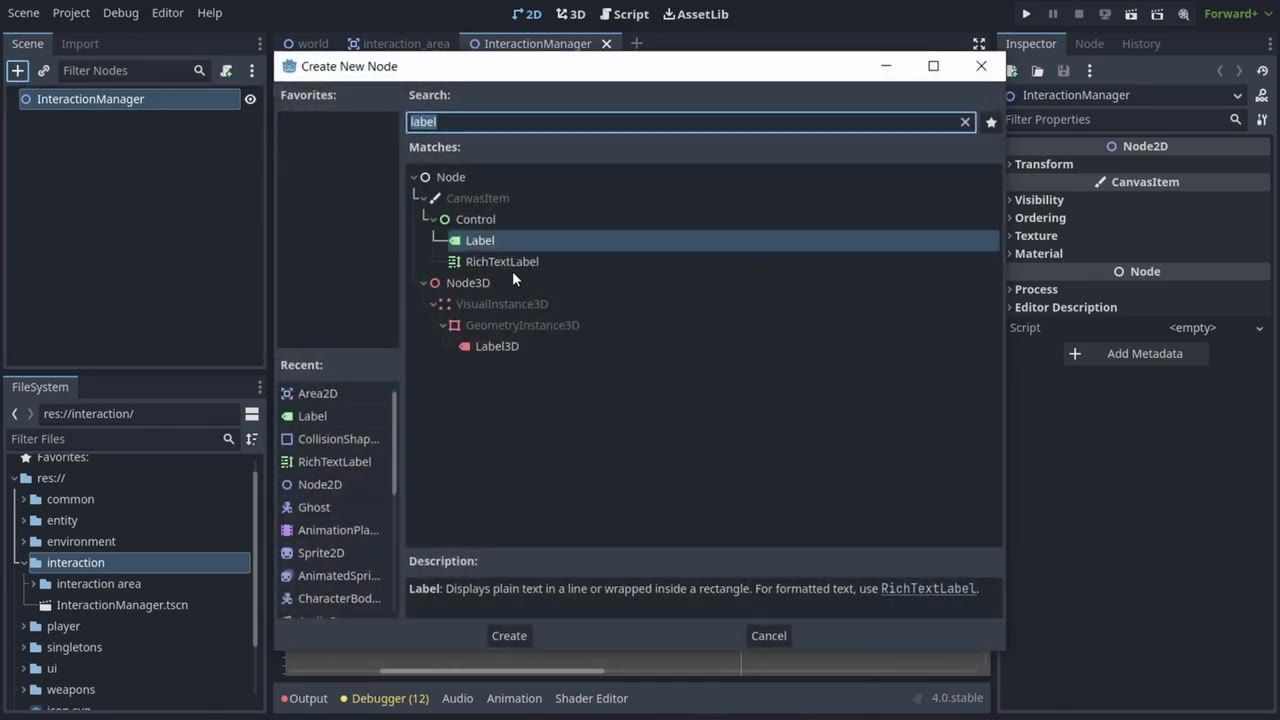
Create the manager scene: Build a new scene with a Node2D as the root and name it InteractionManager.
Add a Label for the prompt: Add a Label as a child of the root node. Adjust its text to something like
"E to interact"(the actual text will be set in code).Position and style the label: Set the label's horizontal and vertical alignment to Center. Use an anchor preset of Center Top. Assign a font in the team overrides section, and set a high Z index (like 20) so it draws above the game world.
Create the manager script: Attach a script to the InteractionManager node to track the player, prompt text, active areas, and to handle sorting and displaying the prompt. Below is an example based directly on the walkthrough:
# interaction_manager.gd
extends Node2D

@onready var player = get_tree().get_first_node_in_group("player")
@onready var label = $Label

const BASE_TEXT = "E to "
var active_areas: Array = []
var can_interact: bool = true

func register_area(area: InteractionArea):
    active_areas.push_back(area)

func unregister_area(area: InteractionArea):
    var index := active_areas.find(area)
    if index != -1:
        active_areas.remove_at(index)

func _process(_delta):
    if active_areas.size() > 0 and can_interact:
        active_areas.sort_custom(sort_by_distance_to_player)
        label.text = BASE_TEXT + active_areas[0].action_name
        label.global_position = active_areas[0].global_position
        label.global_position.y -= 36
        label.global_position.x -= label.size.x / 2
        label.show()
    else:
        label.hide()

func sort_by_distance_to_player(a, b):
    var d1 = player.global_position.distance_to(a.global_position)
    var d2 = player.global_position.distance_to(b.global_position)
    return d1 < d2

func _input(event):
    if event.is_action_pressed("interact") and can_interact:
        if active_areas.size() > 0:
            can_interact = false
            label.hide()
            await active_areas[0].interact.call()
            can_interact = true

The InteractionManager scene is open with a Label selected and its properties visible in the Inspector. — DashNothing
Register and unregister areas with signals
steps
Open the Node tab for your InteractionArea node.
Connect signals for
body_enteredandbody_exited.Handle the signals in your script to inform the manager when the player enters or leaves the area:
# interaction_area.gd additions
func _on_body_entered(body):
    if body.is_in_group("player"):
        InteractionManager.register_area(self)

func _on_body_exited(body):
    if body.is_in_group("player"):
        InteractionManager.unregister_area(self)
Make sure your player is in the
"player"group so the check works.Only remove present areas: Unregister an area only if it is actually present in the list (the unregister function checks for this).

The Node tab is open on InteractionArea with the body_entered and body_exited signals listed in the Signals panel. — DashNothing
Add the interact key in Input Map and Autoload
steps
- Add an input action: Open Project Settings and go to the Input Map tab. Create an action named interact and assign your preferred key (like E).
- Autoload the interaction manager: In the project settings, add your InteractionManager scene to Autoload so it is available as a singleton.
- Keep the manager global: With autoload, every scene and object can access the InteractionManager for registration and interaction control.

Project Settings is open on the Input Map tab, showing the interact action in the action list and filter field. — DashNothing
Attach interaction behavior to game objects
steps
Add the interaction area to your object: Attach the interaction area scene as a child to a game object such as an NPC or lamp.
Customize the action name: In the Inspector, set the action name to match the object's action (e.g., "talk" or "toggle").
Add a CollisionShape2D: Provide a collision shape to the interaction area to enable all collision and interaction logic and prevent warning icons in the editor.
Assign a callable for object behavior: In your NPC or interactable object's script, assign the
interactvariable of your InteractionArea to a callable that points to the method containing the object's specific interaction logic.For example, to start dialogue on an NPC:
# In NPC.gd script
@onready var interaction_area = $InteractionArea

func _ready():
    interaction_area.interact = Callable(self, "on_interact")

async func on_interact():
    await $DialogManager.start_dialog()
For a lamp that toggles on and off:
# In Lamp.gd script
@onready var interaction_area = $InteractionArea

func _ready():
    interaction_area.interact = Callable(self, "toggle_lamp")

func toggle_lamp():
    # Toggle on/off logic
    $Sprite.visible = not $Sprite.visible

The scene tree shows an InteractionArea attached to a character node while the viewport displays the character. — DashNothing
Also worth knowing
- Instantiate Child Scene for Signal Connections: When adding the interaction area scene to an interactable object, use "Instantiate Child Scene" instead of just adding it as a child node. This preserves the interaction area's built-in signal connections.
- Autoload Location: The global manager scene must be added to Autoload under the "Globals" tab in project settings for consistent access everywhere.
- Prompt Label Centering: If your interaction prompt label is not centered above the object, offset it using the area's position rather than adjusting according to the label's width.
FAQ
Godot 4 interact with objects tutorial
To interact with objects in Godot 4, use an Area2D-based interaction area that registers itself with a global manager when the player is inside it. The manager tracks all active areas and, when the interact key is pressed, triggers the closest one's callable method for contextual interaction.
How to make an interaction system in Godot
Build a reusable interaction system by creating a generic Area2D scene (interaction area) and a manager (singleton) that receives signals as the player enters and leaves each area. Attach a script to the manager so it processes input and sorts which interactable is closest, then runs the appropriate action when prompted.
Godot raycast interaction tutorial
This guide focuses on Area2D-based detection instead of raycasting. Interaction areas are defined by 2D shapes and collision, allowing overlap-based detection and registration with the manager. The system does not use raycasting but achieves precise, modular interaction with collision masks.
Godot 4 signals for object interaction
Signals from the interaction area's body_entered and body_exited events are connected to register or unregister that object with the manager. This keeps the list of currently interactable objects accurate and automatically handled as the player moves.
Godot interaction prompt system
A label in the interaction manager displays a prompt above the nearest interactable area, combining a base "E to" string with each object's action_name. This label updates position and visibility as active areas change, providing clear feedback of what the interact key will do.
Sources
Official reference: Godot documentation.
Sources
Screenshots on this page are frames from the videos below, used to illustrate the steps they describe. All rights remain with their creators.
- Interact With Objects in Godot 4 | Let's Godot — DashNothing, September 4, 2023
Checked against:
- Godot Engine - Blog – Godot Engine — Godot Engine