Set the main menu level for both the editor startup and game default maps, configure the build to Shipping, select a staging directory, and start packaging from Platforms to export a playable build. To ensure a working main menu and save system, keep the menu in its own level or widget, so the game opens into the correct screen when launched.
Set up the UI and main menu flow
Place the main menu in a dedicated level or use a widget blueprint, then configure the project settings so the game starts in the main menu when launched.
steps
- Create a level that contains your main menu system (or use a dedicated UI widget for menu elements).
- Open Project Settings and go to the section where you set default maps.
- Assign your main menu level to both the Editor Startup Map and the Game Default Map fields.
- This ensures players always start on the main menu, not the gameplay map, when testing and in a packaged build.

The Project Settings window is open to Maps & Modes, with the Editor Startup Map and Game Default Map fields visible. — Buvesa Game Development
Build the save game flow
steps
- Keep the save/load logic aligned with the flow of your menu and gameplay maps for a consistent experience.
Open Packaging Settings and switch to Shipping
Update packaging settings so your build matches what players expect for a release.
steps
- In the editor, open the Platforms menu and choose Packaging Settings.
- Set Build Configuration to Shipping instead of Development to prepare a full game release.
- Specify the Staging Directory to determine where the exported build will be saved, such as a desktop folder.

The Unreal Engine editor shows the Platforms menu open with Packaging Settings visible. — Buvesa Game Development
Choose maps, platforms, and build options
Pick which map and platforms to package, and review additional settings that impact the exported game's appearance and behavior.
comparison
Basic Setup
- Select the map you want to use as the starting point for your build.
- Check the list of supported platforms to include only those you intend to release for (for example, only Windows).
Advanced Setup
- Enable Full Rebuild if you want Unreal Engine to fully rebuild all game assets and code, not just modified files (recommended for final release).
- Set custom project description fields like name, company, and description.
- Add a PNG as the project thumbnail and set the game icon and splash screens for a branded experience.
- Review platform-specific options (like for Windows) to adjust targeted graphics APIs, toolchains, and splash images.

The Project Settings window shows the Windows platform options and related fields. — Buvesa Game Development
Package the project and watch the output log
Export the build and follow the output for errors that may affect the process.
steps
- From the Platforms menu, select Package Project and choose your target platform (such as Windows).
- Open the Output Log to watch the packaging process and spot any errors or warnings as they occur.

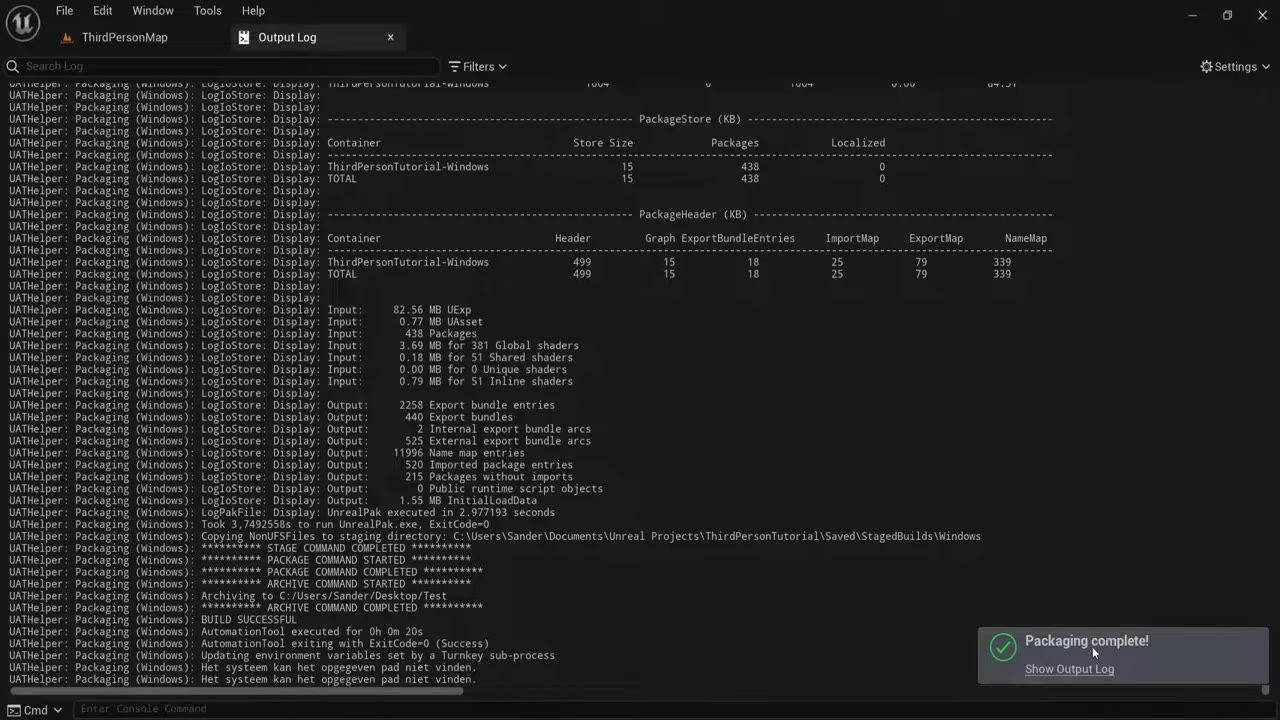
The Output Log shows packaging progress while a Windows dialog indicates the project is being packaged. — Buvesa Game Development
Troubleshoot common packaging problems
Also worth knowing
- Successful packaging does not guarantee a working build: Sometimes the export will complete, but the .exe may fail at runtime.
- Startup and game default maps should both point to your main menu: This ensures the game loads the menu first on both editor launch and packaged build startup.
- Insufficient paging file space can cause build failures: If you get unexplained packaging errors, check your system's virtual memory settings.
- Development environment warnings may not break packaging: Visual Studio or NuGet alerts sometimes appear even during successful builds.
- The debug console may remain enabled in packaged builds: Some builds let players open the console with the tilde key; this may require post-export configuration.
FAQ
how to build UI in Unreal Engine
Create a widget blueprint for your menu screen, then assign your menu level as the startup and game default map so the UI loads first.
Unreal Engine save game tutorial
Set up a save system connected to your menu or starting flow, and use load logic to restore saved progress when the player launches the game or resumes play.
Unreal Engine menu widget tutorial
Create your menu as a widget and place it in a dedicated main menu level; configure both the editor startup and game default map settings to point to this menu level.
Unreal Engine package a build guide
Change your build configuration to Shipping, select your main menu map, choose a staging directory for export, and use Package Project in the Platforms menu. Watch the output log for errors.
Unreal Engine main menu and save system
Keep the main menu as the first screen using the maps settings, and set up the save system so player data loads from the menu or as the game begins.
Unreal Engine export project
Go to Packaging Settings, set the configuration to Shipping, choose the map and export directory, package the project, and test the resulting executable to ensure it works.
Sources
Official reference: Unreal Engine documentation.
Sources
Screenshots on this page are frames from the videos below, used to illustrate the steps they describe. All rights remain with their creators.
- How To PACKAGE - Export Your UE5 GAME (Tutorial) — Buvesa Game Development, April 18, 2022
Checked against: