Set up a Unity Animator for a 2D player by making an Animator Controller with idle and run animation clips, ensuring idle is the default state, and adding a Bool parameter that scripts set when the player moves, switching the animation immediately by setting the transition duration to zero so there’s no delay.
What to set up before you wire movement into the Animator
prerequisites
- Create an Animations folder in your Assets to store the controller and animation clips.
- Make a new Animator Controller in the Animations folder for your player.
- Create an idle animation clip and a run animation clip, and check Loop Time for both so they repeat.
- Add an Animator component to your player GameObject and assign the controller to its Controller field in the Inspector.

The Unity Project window is open to the Animations folder under Assets, with the folder selected and empty. — Wild Cockatiel Games

The Player object is selected and its Animator component shows an assigned controller in the Inspector. — Wild Cockatiel Games
Build the state machine for idle and run
steps
- Open the Animator window by selecting Window, then Animation, then Animator.
- Drag the idle animation clip into the Animator. The state turns orange, marking it as the default starting state.
- Drag the run animation clip into the Animator so both idle and run states appear, but do not connect them yet.

The Animator window is open with the controller graph visible and Idle and Run animation assets ready in the Project panel. — Wild Cockatiel Games
Add the movement parameter that controls animation transitions
steps
- In the Animator, open the Parameters tab and add a parameter of type Bool, name it is running.
- Right-click the idle state and select Make Transition, then click on the run state to create a transition arrow.
- Select the transition arrow and set the condition to is running is true. This switches to run when the parameter is set by your script.
- Create a return transition by right-clicking the run state, making a transition back to idle, and set its condition to is running is false.
- Ensure the parameter name is spelled exactly the same in the Animator and in your movement script.

The Animator window shows the Parameters area with the add menu open and Bool selected. — Wild Cockatiel Games
Hook the player movement script to the Animator
steps
- Add a serialized private Animator field in your player movement script to link the Animator:
using UnityEngine; public class PlayerMovement : MonoBehaviour { [SerializeField] private Animator animator; private float input; // Replace with your own input logic void Update() { // Replace with your own input check, e.g.: input = Input.GetAxisRaw("Horizontal"); if (input != 0) { animator.SetBool("is running", true); } else { animator.SetBool("is running", false); } } } - Assign the Animator component from your player GameObject to the script’s field in the Inspector.
- Set the Bool to true when there is movement input, and set it to false when the input returns to zero.
Fix the delay in the animation transition

Unity Editor displays the Animator transition from Idle to Run with its settings visible in the Inspector. — Wild Cockatiel Games
Sprite animation setup for beginners

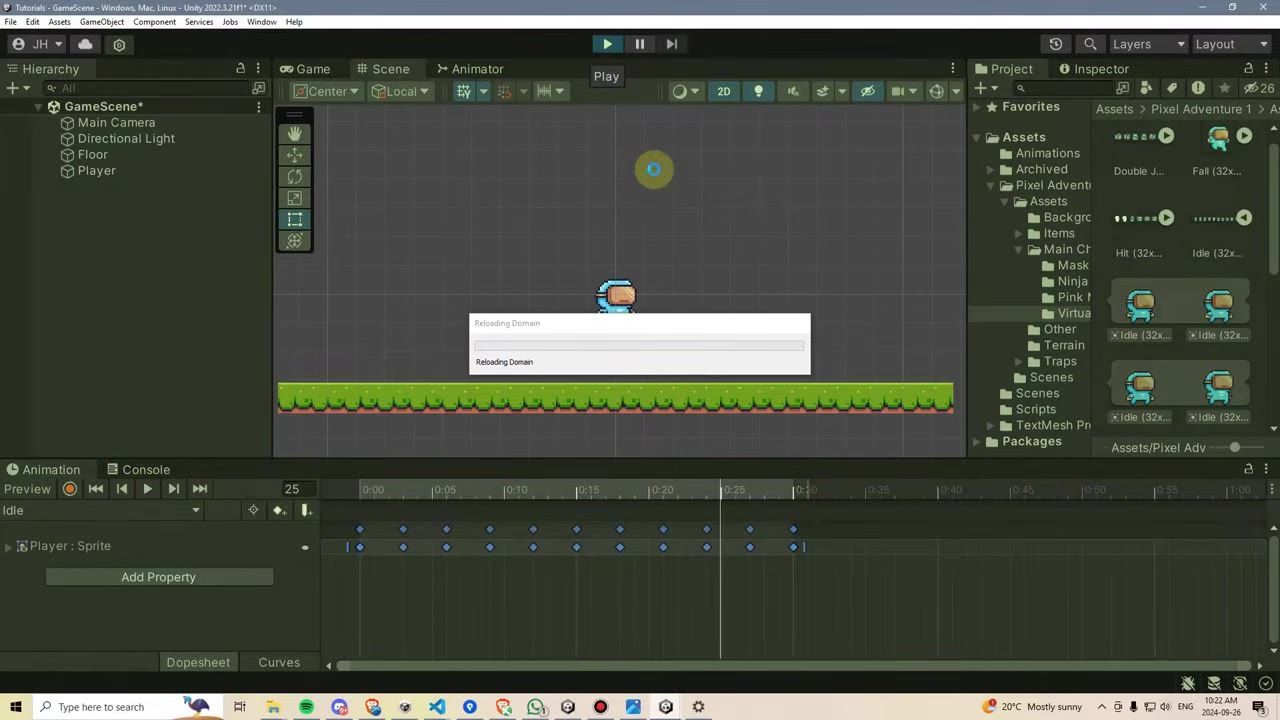
The Unity Animation window shows a sprite clip timeline with keyframes spread across the track. — Wild Cockatiel Games
- Open the Animation tab for your player object to edit and preview clips.
- Drag a sequence of sprite frames into the animation timeline to build idle or run clips.
- Stretch the timeline if the animation plays too quickly.
- Enter Play mode to confirm the player visually animates in the Scene before you wire up transitions.
Unity Animator parameters for movement
- Use a Bool for switching between idle and movement in a simple state machine.
- Double-check that the parameter name matches exactly in both the Animator and your script.
- If your player stays in run even when not moving, confirm the script sets the Bool back to false when input is zero.
Also worth knowing
- Transition delay fix: Setting Transition Duration to 0 removes the unwanted pause before the animation switches states.
- Script–Animator match: The name used in
SetBooland the Animator parameter must match exactly for transitions to work. - Idle/run logic: If your player keeps running while not moving, ensure the script sets the Bool back to false when there’s no input.
- Movement direction flip: Flipping the player left/right for movement direction is usually handled in an earlier step, before setting up these animations.
- Next steps: The typical next feature after idle/move animation is adding a jumping state, which builds on this setup.
FAQ
how to set up Unity Animator for 2D character movement
Create an Animator Controller with idle and run animation clips, set idle as the default state, add a Bool parameter named "is running," and set this parameter from your movement script depending on player input.
Unity 2D animation transitions tutorial
Set up transitions in the Animator from idle to run and back using a Bool parameter, ensuring transitions happen instantly by turning off Has Exit Time and setting Transition Duration to 0.
Unity blend tree for walking and idle
This setup is a simple two-state Animator using a Bool parameter to switch between idle and run. Blend Trees are not used here; for this pattern, use direct transitions with a Bool.
Unity sprite animation setup for beginners
Drag your sequence of sprites into the timeline in the Animation window to create an animation clip, check Loop Time for repeating animations, and preview in Play mode before connecting logic.
Unity animator parameters for movement
Use a Bool parameter named "is running" to signal when the player should switch between idle and run. Make sure the name in the parameter and the code matches exactly, and update it based on player input.
Official reference: Unity manual.
Sources
Screenshots on this page are frames from the videos below, used to illustrate the steps they describe. All rights remain with their creators.
- How to Setup Animator and Animations in Unity 2D — Wild Cockatiel Games, October 22, 2024
Checked against:
- Download Archive — Unity